


Creating New Roles & Permission
- Sarbjeet Sehra
- Sep 21, 2021
- 1 min read

Under this article, you will learn role creation and deletion process in VMware 6.7 version. roles & permissions are always helpful in wide infrastructure and also helps in secure the environment as well assigning the tasks as per their skill.
Follow below steps to create a new role and assigning appropriate permission.
Login into vCenter with administrator credentials and select administration option under menu.
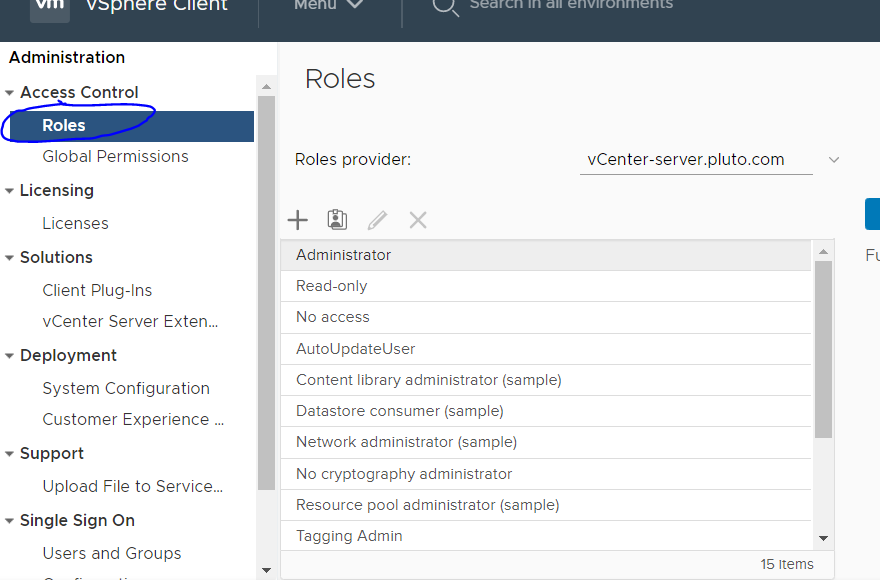
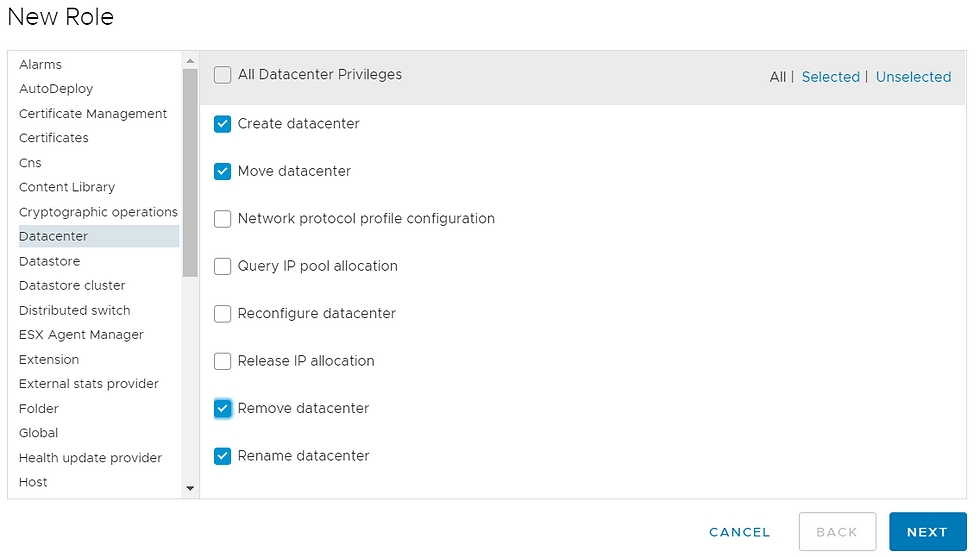
Select the roles which you wish to add and click next button
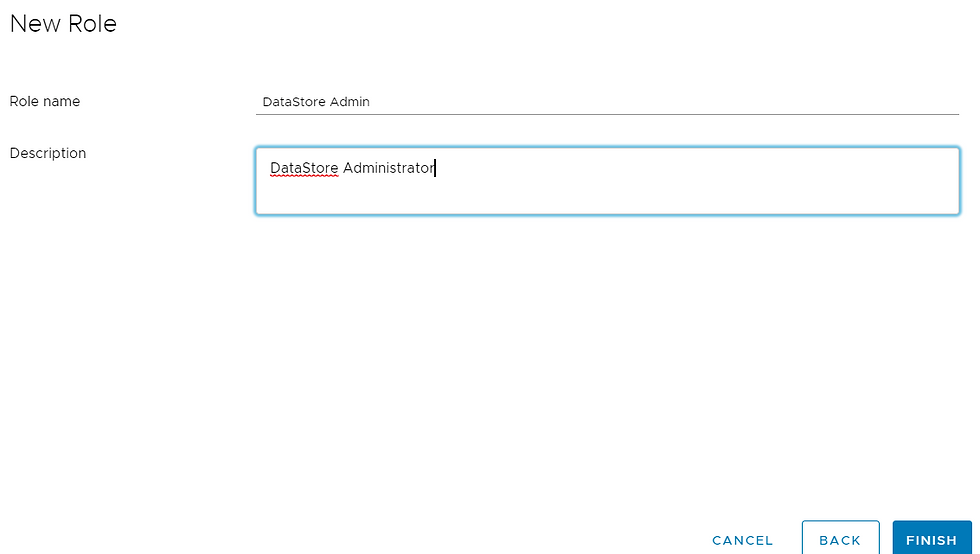
Select role name and click next to finish the process.
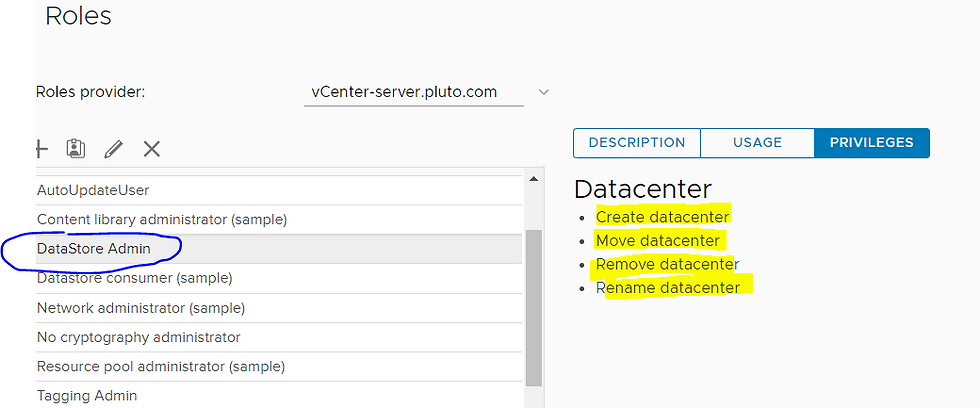
New role have been created and reflecting under VMware vCenter roles list. Now, map this role to respective group and person ID.
Go back to global permission under vCenter and click on Global permission.
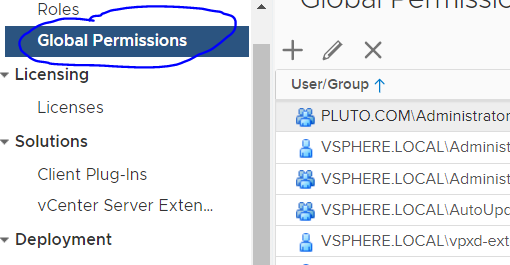
Under global permission option, click on plus button to add this role to specific user or group.
select directory from where you wish to add user/group (it should either local or AD directory) In this case, we are adding a user from active directory.
Select domain name from "user" list and search respective user name which you wish to add and select role to tag. (Here, we mapped newly created role to VMwareAdmin user.

Role and permission has been granted to VMwareAdmin user.




Comments