


VMware vSphere 7.0 quick preparation guide
- Sarbjeet Sehra
- Jan 25, 2022
- 24 min read


In this guide we shall cover below contents in more detail. Document have some internal links that refer other associated knowledge documents. This guide is prepared as per best knowledge. You may refer VMware articles for more details & knowledge
Module 1
What's New in VMware ?
New features and more about VMware 7 product line
vSphere Architecture, Integration, and Requirements
Foundation topics, Storage Infrastructure, network Infrastructure, Cluster and high availability, vCenter server features and virtual Machines, Vmware Product Integration, vSphere Security
Module 2
vSphere Installation/Configuration vSphere Management and Optimization
Esxi Host installation and configuration, Configuring virtual network
Module 3
vSphere Management and optimization
Managing and monitoring cluster and resources, Managing resources,
Managing vSphere Security, Managing vSphere and vCenter, Managing virtual Machines.
Importance
VMware vSphere® software suite is based on many components with which a vSphere administrator should be familiar. You must understand the following vSphere concepts and best practices:
The concept of virtualization, VMware ESXi™, and the virtual machine and other concepts that associated with vSphere products.
The fundamental vSphere components and how vSphere can be used in your software-defined data center
How the VMware vSphere® Web Client are used to administrate and manage vSphere environments
Optimization of your virtual environment for maximum outcome
Let’s start with News and update

What's New in VMware 7 ?
Vmware vSphere 7 released on April 2020 and here are few insight on its new features.
Improved Clustering features :

Unlike the DRS in the previous versions of vSphere, in vSphere 7 the DRS isn’t aimed at balancing ESXi host load. This is the biggest difference. The main priority of the DRS is no longer caring about ESXi host utilization but rather the virtual machine happiness. This means that provisioning enough resources for a VM is the objective. The redesigned DRS provides a more workload-centric approach.
The Distributed Resource Scheduler in vSphere 7 can calculate utilization of resources every minute. In previous vSphere versions, the minimum checking interval was 5 minutes. Optimization of resources has become more granular.
VMware vMotion : VMware vMotion is used to provide VM migration between ESXi hosts without interrupting VM operation. VMware vSphere 7 vMotion enhancements lead to consuming less resources for live VM migration and reduce stun time. Now there is almost no performance degrading for the workloads of VMs during live migrations.
Updated vCenter Server : The new vCenter can simplify management and operations with new VMware features. Now vCenter 7 cannot be installed on a Windows machine. VMware vCenter 7 can be deployed only as a virtual appliance (VCSA “vCenter Server Appliance) based on a Photon OS (a Linux-based operating system maintained by VMware). There is no more Flash-based vSphere Web Client. Only HTML5 vSphere Client that supports all features now can be used for vCenter management. VMware vCenter 7 can manage the following versions of ESXi: ESXi 6.5, ESXi 6.7, and ESXi 7.0. Hosts running ESXi 6.0 cannot be managed by vCenter 7.
The Platform Service Controller is consolidated into vCenter Server 7.
VMware vSphere Lifecycle Manage : In vSphere 7, VMware Update Manager has been deprecated. vSphere Lifecycle Manager (VLCM) is provided as part of vCenter for managing lifecycle operations and configuration management in vSphere, such as installing updates, patches and upgrades, and applying ESXi host profiles. VLCM can also manage firmware updates for your platform. The update process can be automated. The Lifecycle Manager operates with images for installing or updating software for vSphere components. The image can contain elements such as versions of ESXi, vendor add-ons (patches, drivers), and components (sets of VIBs, payloads, bulletins)
ESXi Compatibility : The latest versions of guest operating systems are supported now in vSphere 7 including Windows Server 2019, Ubuntu 19, SUSE Linux 11.x, CentOS 8.x, Red Hat Enterprise Linux 8.x and others. Virtual machines that have hardware version 4 (ESXi 3.x) and later can run on ESXi 7. VMs that have older hardware versions are not supported. The virtual machine hardware version 17 is available for ESXi 7 and is not available for older versions of ESXi.
Features of the VM hardware version 17:
A Virtual Watchdog Timer allows you to monitor a guest OS of VMs in a cluster and receive a notification if a guest OS or applications crash and are not responding.
Precision Time Protocol (PTP) provides a higher time accuracy and a precision clock device for VMs. Precise time is important for applications working with Active Directory, secure connections, scientific and financial applications, and so on. An ESXi host and a guest OS on a VM must be configured to use PTP.
Unlike vSphere 6.7, the following processor generations are not supported in vSphere 7: Intel Family 6, Model = 2C (Westmere-EP) Intel Family 6, Model = 2F (Westmere-EX)
Click here to know more about compatibility matrix :- VMware Compatibility Guide - System Search
VM Template Versioning and the Content Library :
Template management has become more flexible with vSphere 7. You don’t need to perform manual operations such as convert a VM template to a VM or convert a VM to a VM template for editing as is the case in previous versions. Check-in and Check-out operations allow you to update VM templates when the templates are stored in the Content Library. Template versioning allows administrators to make changes quickly and to track template versions and history. You can check out to edit a template and then check in to create a new version of the template.
Product and environment insight

Let’s understand the Infra and environment so that we can go more on their components insights.
Below is the virtual infra diagram or we can say, how the Virtual Infra work in data Centres, how they are interconnected with SAN storage and Network switches and available components under vSphere.

Overview of Packaging & Licensing
VMware offers several packaging options that are designed for customers to meet their specific requirements for scalability, size of environment, and use cases.
vSphere Editions Customers can choose from three editions: vSphere Standard, vSphere Enterprise Plus and vSphere Platinum
vSphere Standard Edition™ provides an entry-level solution for basic server consolidation to slash hardware costs while accelerating application deployment.
vSphere Enterprise Plus Edition™ offers the full range of vSphere features for transforming data centers into dramatically simplified cloud infrastructures, for running today’s applications with the next generation of flexible, reliable IT services.
vSphere Essentials kit is an all in one solution for small environments with up to 3 hosts (2 CPUs on each host).
vSphere Essentials Plus kit is similar to the Essentials kit and provides additional features such as vSphere vMotion, vSphere HA, and vSphere replication.
VMware vSphere Remote Office Branch Office Editions are designed for an IT infrastructure located in remote/distributed sites. These editions include 25 VM licenses of vSphere Remote Office Branch Office. The following table shows the different options available for Remote Office Branch Office Editions.
vSphere add-on for Kubernetes feature it allows you to use Kubernetes on your vSphere cluster. A cluster that is enabled for vSphere with Kubernetes is called a Supervisor Cluster. To enable this on your cluster, assign a VMware vSphere 7 Enterprise Plus with Add-on for Kubernetes license to all ESXi hosts that you want to use as part of a Supervisor Cluster.
vCenter Server editions vCenter Server provides centralized, unified management for the objects in vSphere environments like hosts and VMs. It is a requirement for a complete vSphere deployment.

Let’s understand our LAB environment and its configuration. You may build
At your home or can use Vmware HOL for hand on practice
Download your ISO Image from below web link https://customerconnect.vmware.com/group/vmware/evalcenter?p=free-esxi7
Home lab deployment instruction & details

•You have host hardware that is listed in the VMware Compatibility Guide for vSphere 6.7 /7.0
•You have the ESXi 6.7.0 U1 (Build 10302608) /7.0 ISO image.
•You are booting from DAS, SAN or USB.
Please refer step by step guide "Esxi & vCenter Installation" for more understanding on installation and configuration.
Chapter 2 Storage infrastructure

Importance!
Storage options give you the flexibility to set up your storage based on your cost, performance, and manageability requirements.
Shared storage is useful for disaster recovery, high availability, and moving virtual machines between hosts.
This Module provides details on the storage infrastructure, both physical and virtual, involved in a vSphere 7.0 environment.
Lesson 1: Storage Concepts
Lesson 2: Storage Models
Lesson 3: vSAN Concepts
Lesson 4: vSphere Storage integration
Lesson 5: Storage multi-Pathing and Failover
Lesson 6: Basic overview of storage polices
Lesson 8: Storage DRS and SDRS

Important Information
Few Top Data Storage Vendors
1.pCloud 2.Zoolz
3.BigMIND 4.Polarbackup
5.PureStorage 6.Microsoft Azure
7.AWS 8.Dell EMC
9.IBM 10.NetApp
11.Oracle 12.Seagate Technology
Storage Concepts

This chapter will cover the following contents.
Storage models and Datastores types
Types of Storage
Describe VMware vSphere® storage technologies and datastores
Describe the storage device naming convention
Let’s understand the storage concept in the VMware environment.
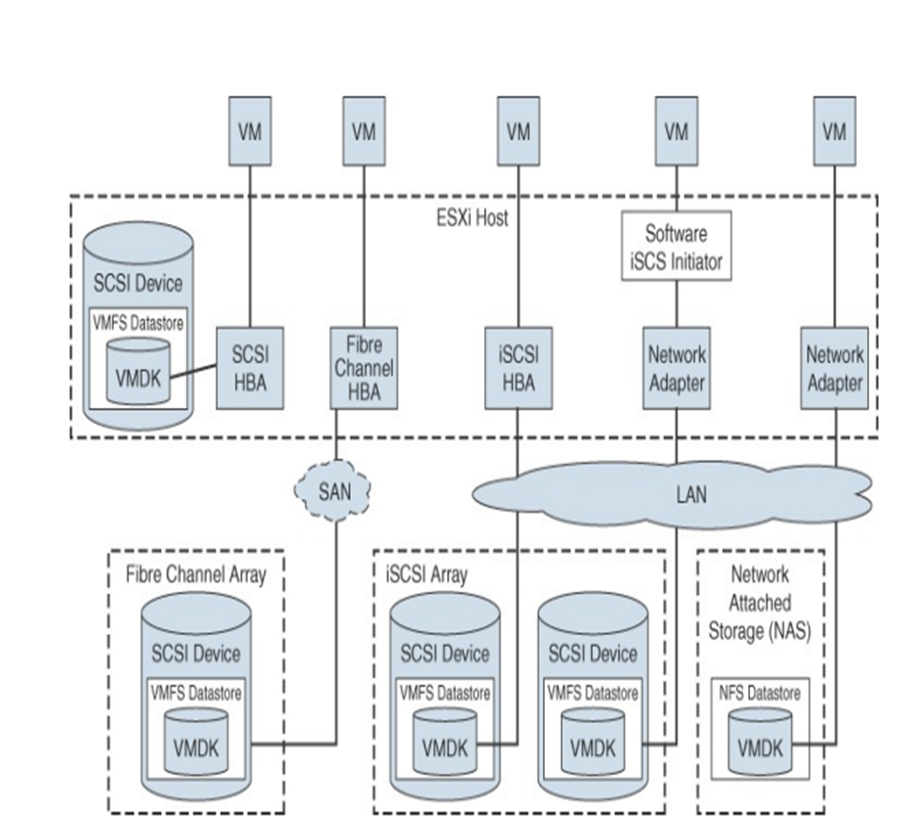
VMware provides a variety of ways for virtual machines to access storage. It supports multiple traditional storage models including SAN, NFS, and Fiber Channel (FC), which allow virtualized applications to access storage resources in the same way as they would on a regular physical machine.

The below diagram will give you more insight on infrastructure w.r.t how storage and its components interconnected with each other in VMware Infra.

Now, let's understand storage components in more depth.
Local Storage : Local storage can be internal hard disks located inside an ESXi host and external storage systems connected to the host directly through protocols such as SAS or SATA. Local storage does not require a storage network to communicate with the host.
Fibre Channel (FC) is a storage protocol that a storage area network (SAN) uses to transfer data traffic from ESXi host servers to shared storage. It packages SCSI commands into FC frames. The ESXi host uses Fibre Channel host bus adapters (HBAs) to connect to the FC SAN
Internet SCSI (iSCSI) is a SAN transport that can use Ethernet connections between ESXi hosts and storage systems. To connect to the storage systems, your hosts use hardware iSCSI adapters or software iSCSI initiators with standard network adapters
If an ESXi host contains FCoE adapters, it can connect to shared Fibre Channel devices by using an Ethernet network
vSphere uses NFS to store virtual machine files on remote file servers accessed over a standard TCP/IP network. ESXi 7.0 uses Network File System (NFS) Version 3 and Version 4.1 to communicate with NAS/NFS servers
The datastores that you deploy on block storage devices use the native vSphere Virtual Machine File System (VMFS) format. VMFS is a special high-performance file system format that is optimized for storing virtual machines.
Raw Device Mapping (RDMs)
RDMs support two compatibility modes:
Virtual compatibility mode: The RDM acts much like a virtual disk file, enabling extra virtual disk features, such as the use of virtual machine snapshot and the use of disk modes (dependent, independent—persistent, and independent—nonpersistent).
Physical compatibility mode: The RDM offers direct access to the SCSI device, supporting applications that require lower-level control.

Benefits of RDMs include the following:
User-friendly persistent names: Much as with naming a VMFS datastore, you can provide a friendly name to a mapped device rather than use its device name.
Distributed file locking: VMFS distributed locking is used to make it safe for two virtual machines on different servers to access the same LUN.
Snapshots: Virtual machine snapshots can be applied to the mapped volume except when the RDM is used in physical compatibility mode.
vMotion: You can migrate the virtual machine with vMotion, as vCenter Server uses the RDM as a proxy, which enables the use of the same migration mechanism used for virtual disk files.
Note To support vMotion involving RDMs, be sure to maintain consistent LUN IDs for RDMs across all participating ESXi hosts
Here is the storage protocol matrix under VMware vSphere.

How Virtual Machine Access Storage in a virtual environment?
A virtual machine communicates with its virtual disk stored on a datastore by issuing SCSI commands. The SCSI commands are encapsulated into other forms, depending on the protocol that the ESXi host uses to connect to a storage device on which the datastore resides
Now, Let's under the concepts of Datastore in VMware.

A datastore is a logical storage unit that can use disk space on one physical device or span several physical devices.
Types of datastores:
VMFS
NFS
vVols
vSAN
Datastores are used to hold virtual machine files, templates, and ISO images.

VMFS 6
Allows concurrent access to shared storage
Can be dynamically expanded
Uses SFB and LFB, SFB can range from 64KB to 1MB block size, and LFB is set to 512MB, good for storing large virtual disk files
Uses subblock addressing, good for storing small files:
The subblock size is 8KB.
Provides on-disk, block-level locking

NFS

Is storage shared over the network at the file system level
Supports NFS version 3 or 4 over TCP/IP

Raw Device Mapping
RDM enables you to store virtual machine data directly on a logical unit number (LUN).The mapping file is stored on a VMFS datastore that points to the raw LUN.
Understanding of ISCSI Storage
Describe iSCSI components and addressing
Configure iSCSI initiators
We shall go with each and every component of ISCSI
iSCSI (Internet Small Computer System Interface) encapsulates SCSI control and data in TCP/IP packets, allowing access to storage devices over the existing network infrastructure
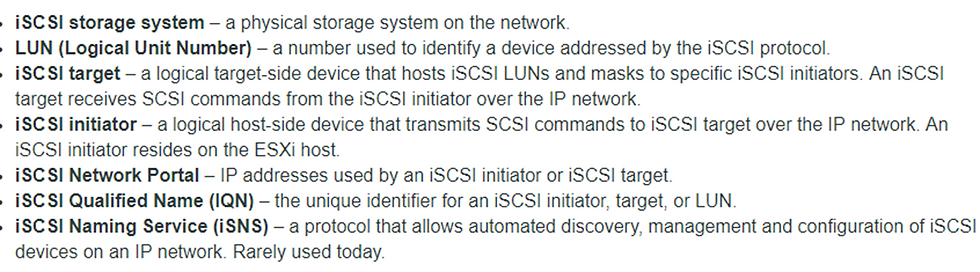

An iSCSI node (which can be either a target or an initiator) is identified by a unique name so that storage can be managed regardless of address.
Software ISCSI

To configure the iSCSI software initiator:
•Configure a VMkernel port for accessing IP storage.
•Enable the iSCSI software adapter.
•Configure the iSCSI qualified name (IQN) and alias (if required).
•Configure iSCSI software adapter properties, such as static or dynamic discovery addresses and iSCSI port binding.
Esx Network Configuration for IP Storage
A VMkernel port must be created for ESXi to access software iSCSI.
The same port can be used to access NAS/NFS storage.

To optimize your vSphere networking setup:
§Separate iSCSI networks from NAS/NFS networks.
•Physical separation is preferred.
•If physical separation is not possible, use VLANs.
ISCSI Target Discovery Method

Two discovery methods are supported:
§Static
§Dynamic (also called Send Targets)
The Send Targets response returns IQN and all available IP addresses
MultiPathing with ISCSI Storage

Hardware iSCSI:
Use two or more hardware iSCSI adapters.
Software or dependent hardware iSCSI:
Use multiple NICs.
Connect each NIC to a separate VMkernel port.
Associate VMkernel ports with the iSCSI initiator.
Configure port binding in the Adapter details window of the iSCSI adapter.

Configure NAS/NFS Storage
Now, let's understand more about NFS and its components.
Network File System is a distributed file system protocol originally developed by Sun Microsystems in 1984, allowing a user on a client computer to access files over a computer network much like local storage is accessed

Configuring an NFS Datastore
Create a VMkernel port:
For better performance and security, separate it from the iSCSI network.
Provide the following information:
NFS server name (or IP address)
Folder on the NFS server, for example, /LUN1 and /LUN2
Host to create datastore on
Whether to mount the NFS file system read-only:
Default is to mount read/write
NFS datastore name
Configure on each ESXi host that you want to access the datastore.
Select Hosts and Clusters view. Select a host, then click the Related Objects tab and Datastores link.
Let’s understand the version information as well as their compatibility of NFS under 3.x and 4. x versions.
Comparison of NFS 3 and 4 versions

Process of Unmounting NFS Datastore

1. Right-click the datastore.
2. Select All vCenter Actions and select Unmount Datastore.
Unmounting an NFS datastore causes the files on the datastore to become inaccessible to the ESXi host.
Multipathing and NFS Storage

One recommended configuration for NFS multipathing:
Configure one VMkernel port.
Use adapters attached to the same physical switch to configure NIC teaming.
Configure the NFS server with multiple IP addresses.
IP addresses can be on the same subnet.
To use multiple links, configure NIC teams with the IP hash load-balancing policy.
VMFS DataStore
In this section, we shall discuss VMFS and its configurations with below following contents.
Create a VMFS datastore
Increase the size of a VMFS datastore
Delete a VMFS datastore
Use VMFS datastores whenever possible:
VMFS is optimized for storing and accessing large files.
A VMFS datastore can have a maximum volume size of 64TB.
NFS datastores are good for storing virtual machines. But some functions are not supported.
Use RDMs if the following conditions are true of your virtual machine:
It is taking Storage Array level snapshots.
It is clustered to a physical machine.
It has large amounts of data that you do not want to convert into a virtual disk.

To create a VMFS datastore
1. Select the host.
2. Select the Storage link.
3. Complete the New Datastore wizard.
A datastore becomes overcommitted when the total provisioned space of thin-provisioned disks is greater than the size of the datastore.
Actively monitor your datastore capacity:
Alarms assist through notifications:
Datastore disk overallocation
Virtual machine disk usage
Use reporting to view space usage.
Actively manage your datastore capacity:
Increase datastore capacity when necessary.
Use VMware vSphere® Storage vMotion® to mitigate space usage issues on a particular datastore.
Increasing VMFS Datastore
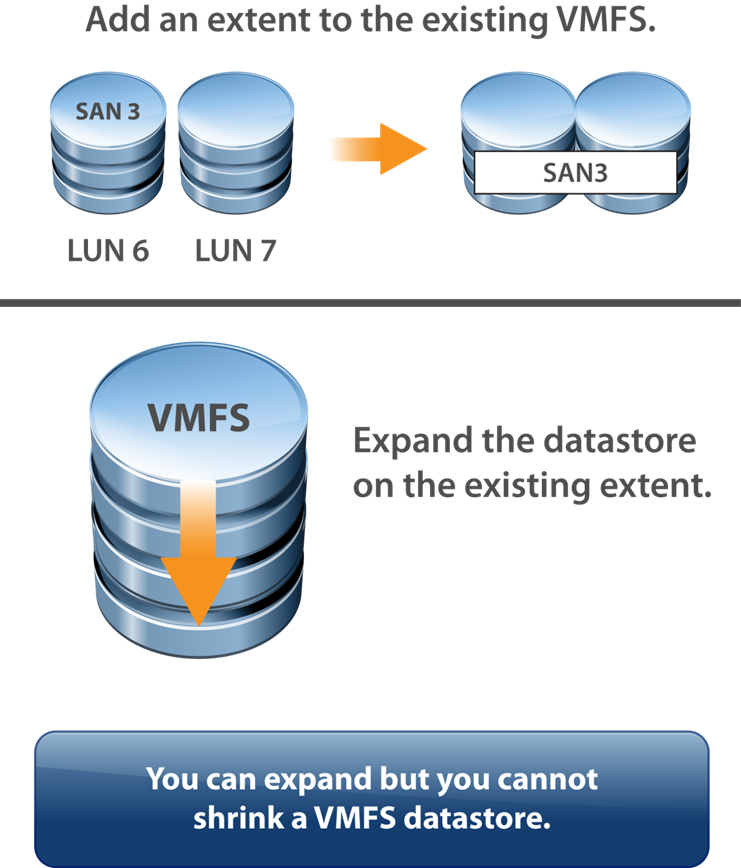
Increase a VMFS datastore’s size to give it more space or possibly to improve performance.
Two ways to dynamically increase the size of a VMFS datastore:
Add an extent (LUN).
Expand the datastore within its extent.
Comparing Method For increasing VMFS Datastore Size
Storage vMotion: Storage vMotion supports migration across VMFS, vSAN, and vVols datastores. vCenter Server performs compatibility checks to validate Storage vMotion across different types of datastores.
Storage DRS: VMFS Version 5 and Version 6 can coexist in the same datastore cluster. However, all datastores in the cluster must use homogeneous storage devices. Do not mix devices of different formats within the same datastore cluster.
Device Partition Formats: Any new VMFS Version 5 or Version 6 datastore uses the GUID Partition Table (GPT) to format the storage device, which means you can create datastores larger than 2 TB. If your VMFS Version 5 datastore has been previously upgraded from VMFS Version 3, it continues to use the Master Boot Record (MBR) partition format, which is characteristic of VMFS Version 3. Conversion to GPT happens only after you expand the datastore to a size larger than 2 TB.
Precautions before increasing Datastore size
In general, before making any changes to your storage allocation:
Perform a rescan to ensure that all hosts see the most current storage.
Quiesce I/O on all disks involved.
Record the unique identifier (for example, the NAA ID of the volume that you want to expand).
Vmware does not support upgrading from VMFS5 to VMFS6
VMFS6 Datastore can be created only as a new datastore or you can migrate the machines or data from VMFS5 to VMFS6 datastore

Deleting VMFS Datastore Process.
The way we delete datastore in NFS, the similar process we shall follow in VMFS also.

Before initiating the delete process, make sure there shouldn't be no data inside this datastore. If so, take the backup or move it onto another datastore.
First, un-mound the DataStore from all Esxi Hosts
Right-click on the Datastore and select the delete option to delete the Datastore from vSphere vCenter
VMFS Automatic Space reclamation
When you create VMFS datastore, you can modify the default setting for
automatic space reclamation this is also called unmap operation.
By Default, the LUN performs the free space reclamation operation in Low rate. You can set the space reclamation priority None to Disable the operation for the database.

Note : In VMFS5 and earlier version do not unmap free space automatically, but you can use the esxcli command to reclaim space manually
e.g: “esxcli storage VMFS unmap”
Managing Multiple storage paths

vSphere 6.7 support 512 devices and 2048 paths, in the previous vSphere
Versions, the limit was 256 devices and 1024 paths
Configuring Storage Load Balancing
Path selection policies exist for:
Scalability:
Round Robin: A multipathing policy that performs load balancing across paths
Availability:
Most Recently Used (MRU) and Fixed

About Datastore Cluster
A Datastore is the collection of datastores that
are grouped together without functioning
together and it also helps to balance capacity
and I/O control
Data Store cluster requirement
NFS and VMFS Datastore cannot be combined in the same datastore cluster
All hosts attached to the datastore in a datastore cluster must be ESXi 5.0 or later
Datastore shard across Multiple data datacenters cannot be be included include data centers in a datastore cluster
Storage Migration Recommendation
Migration recommendations are executed under the following conditions
•When the I/O latency threshold is exceeded
•When space utilization threshold is exceeded
Note: By default, load history checks every eight hours if enabled.
vVols Datastore
Virtual volumes are encapsulations of virtual machine files, virtual disks, and their derivatives that are stored natively inside a storage system. You do not provision virtual volumes directly. Instead, they are automatically created when you create, clone, or snapshot a virtual machine. Each virtual machine can be associated to one or more virtual volumes. The main component in vVol are vVol device, protocol end point, storage container, VASA provider and array.
SAN Datastores You can create a vSAN datastore in a vSAN cluster. vSAN is a hyperconverged storage solution, which combines storage, compute, and virtualization into a single physical server or cluster. The following section describes the concepts, benefits, and terminology associated with vSAN.
Storage in vSphere with Kubernetes
To support the different types of storage objects in Kubernetes, vSphere with Kubernetes provides three types of virtual disks: ephemeral, container image, and persistent volume. A vSphere pod requires ephemeral storage to store Kubernetes objects, such as logs, emptyDir volumes, and ConfigMaps. The ephemeral, or transient, storage exists if the vSphere pod exists.
The vSphere pod mounts images used by its containers as image virtual disks, enabling the container to use the software contained in the images
The vSphere pod mounts images used by its containers as image virtual disks, enabling the container to use the software contained in the images
Storage MultiPathing and Failover
Multipathing is used for performance and failover. ESXi hosts can balance the storage workload across multiple paths for improved performance. In the event of a path, adapter, or storage processor failure, the ESXi host fails over to an alternate path.

When a path failover occurs, disk I/O could pause for 30 to 60 seconds. During this time, viewing storage in the vSphere client or virtual machines may appear stalled until the I/O fails over to the new path. In some cases, Windows VMs could fail if the failover is taking too long. VMware recommends increasing the disk timeout inside the guest OS registry to 60 seconds at least to prevent this.
There are three types of Path under this process.
Most recently used: Initially, MRU selects the first discovered working path. If the path fails, MRU selects an alternative path and does not revert to the original path when that path becomes available. MRU is the default for most active/passive storage devices
FIXED Path: Fixed uses the designated preferred path if it is working. If the preferred path fails, FIXED selects an alternative available path but reverts to the preferred path when it becomes available again.
Round Robin: Uses an automatic path selection algorithm to rotate through the configured paths. RR sends an I/O set down the first path, sends the next I/O set down the next path, and continues sending the next I/O set down the next path until all paths are used; then the pattern repeats, beginning with the first path.
Note: FIXED is the default policy for most active/active storage devices
vSphere Storage DRS
vSphere Storage DRS enables you to manage the aggregated resources of a datastores, it provides the following functions:-
Initial placement of Virtual machines based on storage capacity and optically on I/O latency.
Use vSphere Storage vMotion to migrate virtual machines based on storage capacity and, optionally, I/O latency.
You can create vSphere storage DRS anti-infinity rules to control which machine's disk should not be placed on the same datastore in a datastore cluster.
No Automation (manual mode) Placement and migration recommendations are displayed but do not run until you manually apply the recommendation.

Partially Automated Placement recommendations run automatically, and migration recommendations are displayed but do not run until you manually apply the recommendation.
Fully Automated Placement and migration recommendations run automatically.
SDRS Thresholds and Behaviors
You can control the behavior of SDRS by specifying thresholds. You can use the following standard thresholds to set the aggressiveness level for SDRs:
Space Utilization: SDRS generates recommendations or performs migrations when the percentage of the space utilization on the datastore is greater than the threshold you set in the vSphere Client
I/O Latency: SDRS generates recommendations or performs migrations when the 90th percentile I/O latency measured over a day for the datastore is greater than the threshold
Space Utilization Difference: SDRS can use this threshold to ensure that there is some minimum difference between the space utilization of the source and the destination prior to making a recommendation. For example, if the space used on datastore A is 82% and on datastore B is 79%, the difference is 3. If the threshold is 5, Storage DRS does not make migration recommendations from datastore A to datastore B.
Anti-Affinity Rules
To ensure that a set of virtual machines are stored on separate datastores, you can create anti-affinity rules for the virtual machines. Alternatively, you can use an affinity rule to place a group of virtual machines on the same datastore. By default, all virtual disks belonging to the same virtual machine are placed on the same datastore. If you want to separate the virtual disks of a specific virtual machine on separate datastores, you can do so with an anti-affinity rule.
You can create a datastore cluster with mix sizes of Datastores, I/O Capacities and storage array backing. Below are some cluster restrictions.
• NFS and VMFS datastores cannot be combined
•All hosts attached to the datastores in the cluster must be Esxi 5.0 or later. 4. x or earlier versions, DRS does not run
•Datastores shared across multiples DC cannot be included include in the cluster.
vMotion process
To perform live migration of a VM from one physical host to another, VMware vMotion relies on three technologies.
1. First, the feature encapsulates the entire state of the VM. It includes memory, registers, and network connections.
2. After that, the VM’s state information is copied to the destination host. This includes the active memory of the VM and its precise execution parameters and it takes few seconds. VMware vMotion keeps track of the ongoing memory transactions in a bitmap. Upon completion of the data transfer, vMotion suspends the source VM, copies the bitmap to the target host, and resumes the VM’s activities.
3. Since the networks used hence this process preserves the VM’s network identity and active connections. As a part of the process, VMware vMotion manages the virtual MAC address. After the target host is activated, vMotion pings the network router, thus making sure that the router is aware of the new physical location of the virtual MAC address
Key Summary Points which covered in the Storage topic

Storage concepts
Storage Models and Datastore types
vSphere Storage Integration
Storage Multipathing and Failover
Storage DRS (SDRS)
Networking Concepts
vSphere Standard Switch (VSS)
vSphere Distributed Switch (VDS)
vSphere Setting and features
Computer and server Networking is totally based on TCP/IP protocols suite. Through this session, let’s understand essential network terminology and concepts under vSphere environment.

Virtual NICs
A virtual machine may have multiple virtual NICs (vNICs) to connect to virtual networks. Much like a physical NIC, each vNIC has a unique MAC address.
Virtual Switch Concepts
A virtual switch is a software construct that acts much like a physical switch to provide networking connectivity for virtual devices within an ESXi host. vSS is configured and managed by a specific ESXi host. A vDS is configured and managed by the vCenter Serve
(A virtual switch works at Layer 2 of the OSI model. It can send and receive data, Telegram Channel @nettrain provide VLAN tagging, and provide other networking features. A virtual switch maintains a MAC address table that contains only the MAC addresses for the vNICs that are directly attached to the virtual switch)
Virtual Network Importance
The Virtual Switch is the most important entity in a Virtual Network. VMware supports two flavors of virtual switches. These are vSphere Standard Switch (VSS) and vSphere Distributed Switch (VDS). While VSS is available on all editions of vSphere, the distributed switch (VDS) is available only on the Enterprise Plus Edition. In addition
The main purpose of VSS and VDS is to support Layer-2 (Ethernet) packet processing and forwarding. They act as the _conduit _for carrying network traffic from virtual machines into the physical network.

Virtual Port
Virtual ports are supported in two flavors - access port and uplink port. Access ports are used to connect the virtual Ethernet adapter (vNIC) of a VM to the virtual switch. On the other hand, the uplink ports are used to connect the virtual switch to the host’s physical Ethernet adapter (pNIC).
Port Group
In VMware virtual networking, all networking related operations and management is performed on a Port Group. And Port Group are quite simply a collection of virtual ports.
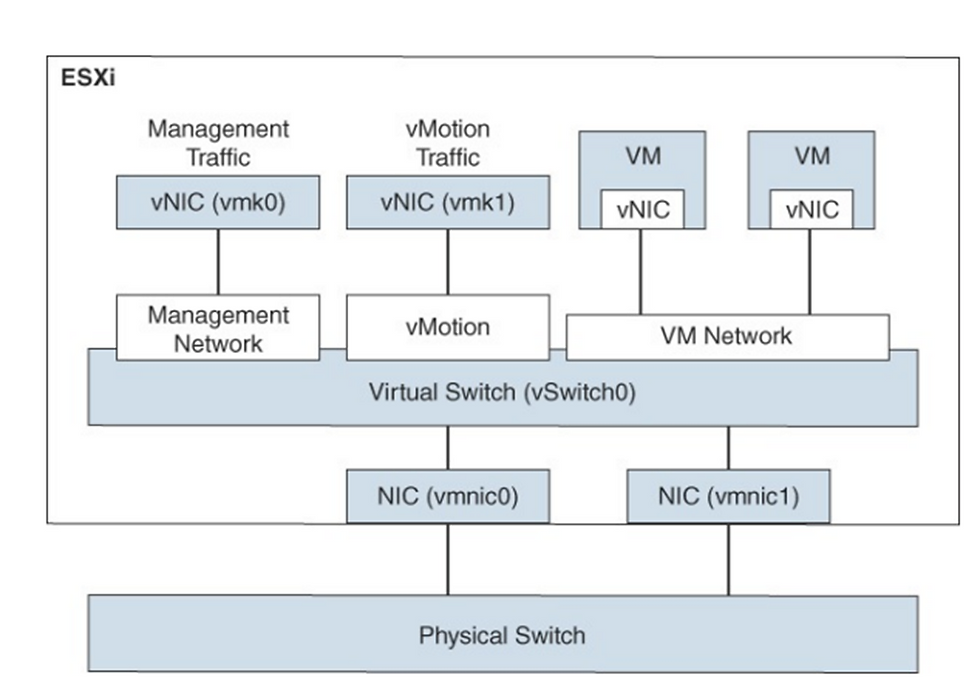
Introduction to vNetwork Standard Switches (vSS)
Types of Virtual Switch Connections
A virtual switch allows the following connection types:
Virtual machine port groups
VMkernel port:
For IP storage, vSphere vMotion migration, VMware vSphere® Fault Tolerance
For the ESXi management network

Difference Between VSS and VDS

Both types of VMware vSphere virtual switches allow vSphere administrators to control vSphere virtual machine traffic.
VSS is the vSphere Standard Switch which used to provide network connectivity to hosts and virtual machines and It’s a default Switch that in place post installation on ESXi (vSwitch0)
Standard switch works with only with one ESXi host
Other side VDS allows a single virtual switch to connect multiple Esxi hosts.
vSphere Distributed switch on a datacenter to handle the networking configuration of multiple hosts at a time from a central place
Standard Switch Configuration

vSS Network Polices
You can apply policies to the switch, which automatically propagate to each port group. At the port group level, you can override policies applied to the switch and apply unique policies to a port group.
You can apply below following polices under Virtual Standard Switch (vSS)
Teaming and Failover Security Traffic Shaping VLAN
Set the polices directly on vSS. To override policy at port groups level, create a different policy and set on port group level
Teaming & failover
The purpose of the teaming is to improve availability to same vSS. (To eliminate single point of failure & to handle large workload)
Administrators can configure layer 2 Ethernet security options at the standard switch and the port groups.
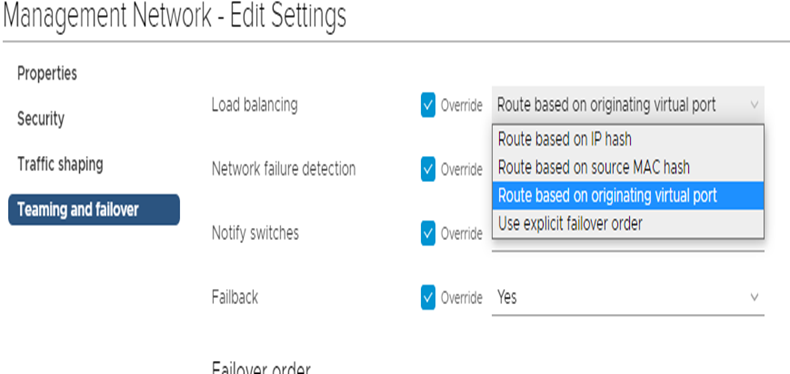
Route Based on Originating Virtual Port: This is a default option.

This is good as virtual machines network are eventually distributed across all available uplink ports however there is load balancing method issue in this topology as there is no clarity or visibility on uplink utilization.
Route Based on IP Hash
Route based on IP Hash works by taking the source and destination IP addresses and performing a mathematical calculation on each packet to determine which uplink in the team to use
Route Based on Source MAC Hash
This load-balancing method is based on source MAC address. The switch processes each outbound packet header and generates a hash using the least significant bit (LSB) of the MAC address.
Use Explicit Failover Order:
In this process, all outbound traffic uses the first uplink that appears in the active uplinks list. If the first uplink fails, the switch redirects traffic from the failed uplink to the second uplink in the list.
Network Security Polices
Network security policies are some things through which you can protect your network traffic or unwanted port scanning etc. These virtual switch policies work & implement on layer 2 of the TCP/IP stack.
There are three types of security policies options available.
Promiscuous Mode: The default value is “reject”. In this process, vNIC receives only those frames that match the effective MAC address.
MAC Address Changes: By Default value is Accepted. In case if we select reject, it disables the virtual switch port until the effective MAC address matches the initial MAC address.
Forged Transmits: By Default, the setting is Accepted hence ESXi does not compare source and effective MAC addresses and does not drop the packet due to a mismatch. In the case of Reject, Esxi compare source and destination address and drop the packets
Traffic-Shaping Policy NIC Teaming Policy

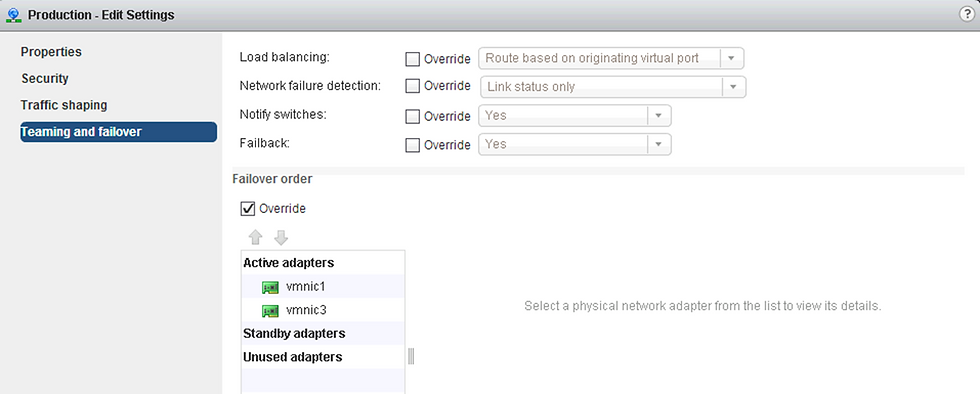
NIC teaming settings:
Load Balancing (outbound only)
Network Failure Detection
Notify Switches
Failback
Failover Order
vSphere Distributed Switch (vDS)

provides centralized management and monitoring of the network configuration of all the ESXi hosts that are associated with the DVswitch.
A distributed switch can be created and configured at vCenter server system level and all its settings are propagated to all the hosts that are associated with the switch. dvSwitch is designed to create a consistent switch configuration across every host in the datacenter
Benefits Of VDS
VDS is second vSwitch included with vSphere
Easier administrator for medium and large environments like Add Port- Group once and all server can use it
Provides features that standard switch don’t
Network I/O Control (NIOC)
Port Mirroring ( capability on a network switch to send a copy of network packets seen on a switch port to a network-monitoring device connected to another switch port. Port mirroring is also referred to as Switch Port Analyzer (SPAN) on Cisco switches)
NetFlow (For monitoring network traffic)
Private VLAN (allows further segmentation and creation of private groups inside each of the VLAN)
Network Shaping (The traffic shaper restricts the network bandwidth available to any port)
vSphere Distributed Switch (vDS) Component ..
The dvswitch consists of two components, the control plane and the I/O or data plane
The Control plane
Control plane exists at vCenter server and It is responsible for all configuration & management.
The Data Plane (I/O plane)
Data plane is hidden switch that exists on each host and it is responsible for handling data flow in and our of each vSphere Host
to the relevant uplinks. Because of this data plane (hidden switch created at each host) network communication continues to work even if your vCenter is down.
Distributed Switch Example

DVS Scenario
You create distributed switch names VDS01. You create a port group Names production, which will be used for Virtual machine networking.

About Vmkernal Networking
The VMkernel networking layer provides connectivity to hosts and handles the standard system traffic of vSphere vMotion, IP storage, Fault Tolerance, vSAN, and others. You can also create VMkernel adapters on the source and target vSphere Replication hosts to isolate the replication data traffic.
TCP/IP Stacks at the VMkernel Level
Provides networking support for the management traffic between vCenter Server and ESXi hosts, and for system traffic such as vMotion, IP storage, Fault Tolerance, and so on.
Management traffic
Carries the configuration and management communication for ESXi hosts, vCenter Server, and host-to-host High Availability traffic.
vMotion traffic : Accommodates vMotion
IP storage traffic and discovery
Its handles the network traffic for storage, such as software iSCSI, dependent hardware iSCSI, and NFS
Fault Tolerance traffic
Handles the data that the primary fault tolerant virtual machine sends to the secondary fault tolerant virtual machine over the VMkernel networking layer
vSphere Replication traffic
Handles the outgoing replication data that the source ESXi host transfers to the vSphere Replication server
vSAN traffic
It handles the vSAN traffic
About vSphere Distributed Switch Health Check
The health check support help you identify and troubleshoot configuration error in vSphere Distribute Switch like :-
Mismatched VLAN trunk between the distributed switch and physical switch
Mismatched virtual switch teaming polices for the physical swich port-channel setting.
Health check can be perform on the following network components

Teaming and failover
Note :- at Least two physical uplinks must be connected to the distributed virtual switch
Monitoring Virtual Distributed Switch Health Check Result
After health check runs for a few minutes, you can monitor the results on the health tab in vSphere Web Client

Back Up and Restore Configurations
You can back up and restore the configuration of your distributed switch, distributed port groups and uplinks for deployment, rollback and sharing purpose.
You may do the following operations under this activity.
Back Up the configuration on disk
Restore the switch and port group configuration from backup
Create a new switch or port group from the backup
Revert to the previous port group configuration after changes are made
Note : You may perform these operations by using the export, import and restore functions available.
Network Resource Pool
A network resource pool is a mechanism that enables you to apply a part of the bandwidth that is reserved for virtual machine system traffic to a set of distributed port groups. By default, no network resource pools exist.
For example, if you reserve 2 Gbps for virtual machine system traffic on a distributed switch with four uplinks, the total aggregated bandwidth available for virtual machine reservation on the switch is 8 Gbps. Each network resource pool can reserve a portion of the 8 Gbps capacity

Other vSphere Networking Features
The following sections provide details on other networking features supported in vSphere 7.0 that are not covered earlier in this chapter.
Multicast Filtering Mode: In basic multicast filtering mode, a virtual switch (vSS or vDS) forwards multicast traffic for virtual machines according to the destination MAC address of the multicast group
In computer networking, multicast is group communication where data transmission is addressed to a group of destination computers simultaneously. Multicast can be one-to-many or many-to-many distribution

DirectPath I/O: You can enable DirectPath I/O passthrough for a physical NIC on an ESXi host to enable efficient resource usage and to improve performance. Post enabling DirectPath I/O on the physical
NIC on a host, you can assign it to a virtual machine, allowing the guest OS to use the NIC directly and bypass the virtual switches.
Single Root I/O Virtualization (SR-IOV) : This feature allows single PCI to appear as multiple devices to the hypervisor. This is useful as it allows the virtual function to the hypervisor and guest operating system. Through this, virtual machines exchange the ethernet frames directly with a physical adapter.
The following features are not available for SR-IOV-enabled virtual machines, and attempts to configure these features may result in unexpected behavior
The following features are not available for SR-IOV-enabled virtual machines, and attempts to configure these features may result in unexpected behavior
vSphere vMotion, Storage vMotion, vShield NetFlow, VXLAN Virtual Wire, vSphere High Availability, vSphere Fault Tolerance, vSphere DRS, vSphere DPM, Virtual machine suspend and resume Virtual, machine snapshots, MAC-based VLAN for passthrough virtual functions, Hot addition and removal of virtual devices, memory, and vCPU, Participation in a cluster environment, Network statistics for a virtual machine NIC using SR-IOV passthrough.
Following NIC are supported under this process.
Intel 82599ES 10 Gigabit Ethernet Controller Family (Niantic), Products based on the Intel Ethernet Controller, X540 Family (Twinville) Products based on the Intel Ethernet Controller, X710 Family (Fortville) Products based on the Intel Ethernet Controller, XL170 Family (Fortville) Emulex OneConnect (BE3)
Note: SR-IOV driver required on each NIC and this also to be enabled on the firmware side
VMkernel Networking and TCP/IP Stacks
The VMkernel networking layer provides connectivity for the hypervisor and handles system services traffic, such as management, vMotion, IP-based storage, provisioning, Fault Tolerance logging, vSphere Replication, vSphere Replication NFC, and vSAN.
The VMkernel provides multiple TCP/IP stacks that you can use to isolate the system services traffic. You can use the preexisting stacks (default, vMotion, and Provisioning
Key Summary Points which covered in the Networking topic

Switch Overview
Standard and distributed switch
Network policies (vSS & vDS)
Distributed Switch Components
Other vSphere Networking features



Comments